Designing mobile apps for accessibility is crucial, with over 1 billion people worldwide living with disabilities. This article highlights five tools to ensure your app meets accessibility standards like WCAG 2.2 and legal requirements such as the ADA and EAA. These tools help identify issues like small touch targets, low contrast ratios, and screen reader compatibility early in development, saving time and resources.
Key Tools for Accessibility Testing:
- Axe DevTools: Cross-platform automated testing for Android, iOS, and web apps. Integrates with CI/CD pipelines and detects up to 80% of issues.
- Accessibility Scanner: A free Google tool for Android apps, flagging issues like missing labels and inadequate touch target sizes.
- Accessibility Inspector: Apple's tool for iOS and macOS, offering detailed audits and real-time feedback on accessibility attributes.
- Lighthouse: Best for mobile web audits, providing accessibility scores and actionable insights via browser extensions.
- Accessibility Insights: Microsoft's open-source tool for Android, Windows, and web apps, combining automated and manual checks.
Quick Comparison:
| Tool | Platforms Supported | Key Features | Best For |
|---|---|---|---|
| Axe DevTools | Android, iOS, Web | Automated testing, CI/CD integration | Comprehensive app testing |
| Accessibility Scanner | Android | Touch target, label, and contrast checks | Early-stage Android app testing |
| Accessibility Inspector | iOS, macOS | Real-time feedback, color contrast calculator | iOS/macOS-specific testing |
| Lighthouse | Mobile Web | Accessibility scoring, browser extensions | Mobile web audits |
| Accessibility Insights | Android, Windows, Web | Visual feedback, manual and automated checks | Multi-platform accessibility |
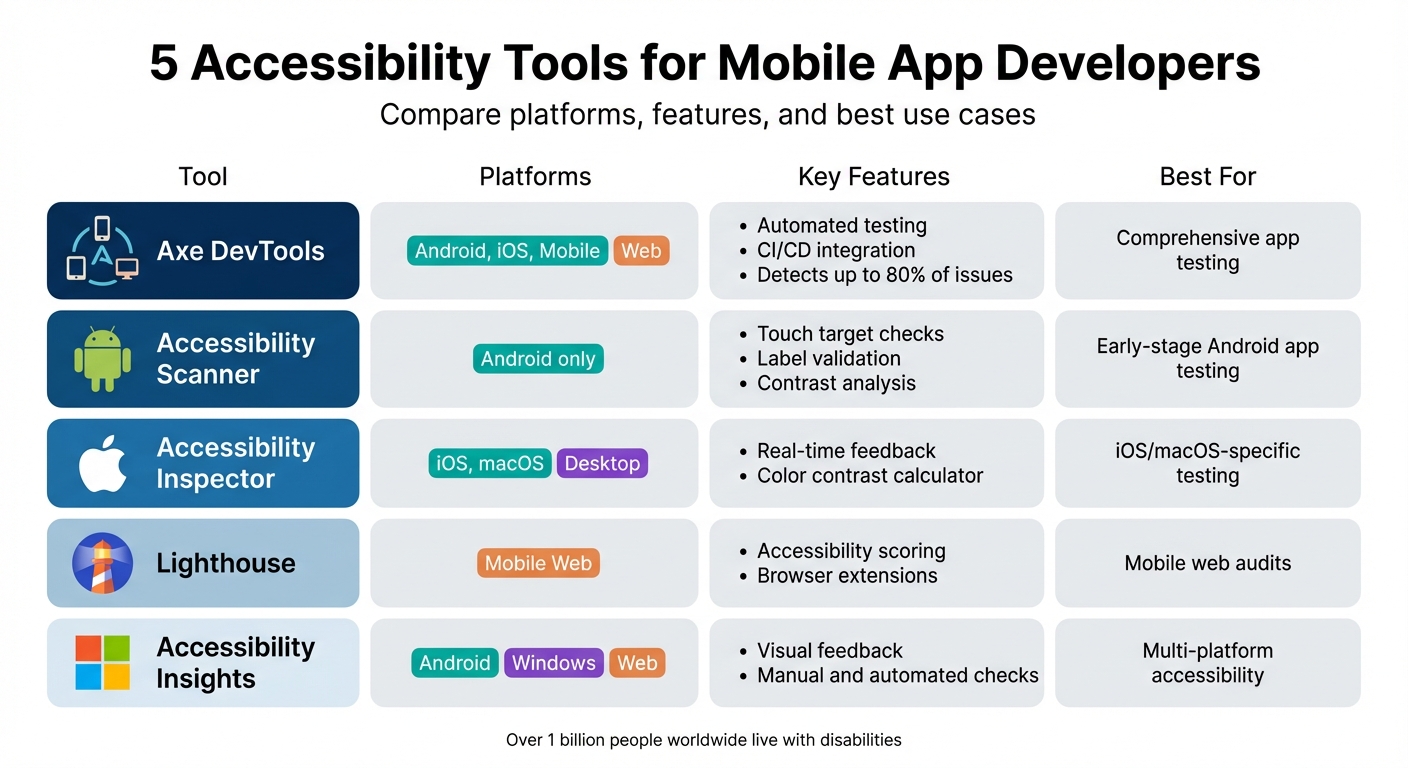
Comparison of 5 Mobile Accessibility Testing Tools for Developers
The Next Generation of Automated Accessibility Testing for Mobile Apps | Axe-con 2024
sbb-itb-3a330bb
1. Axe DevTools
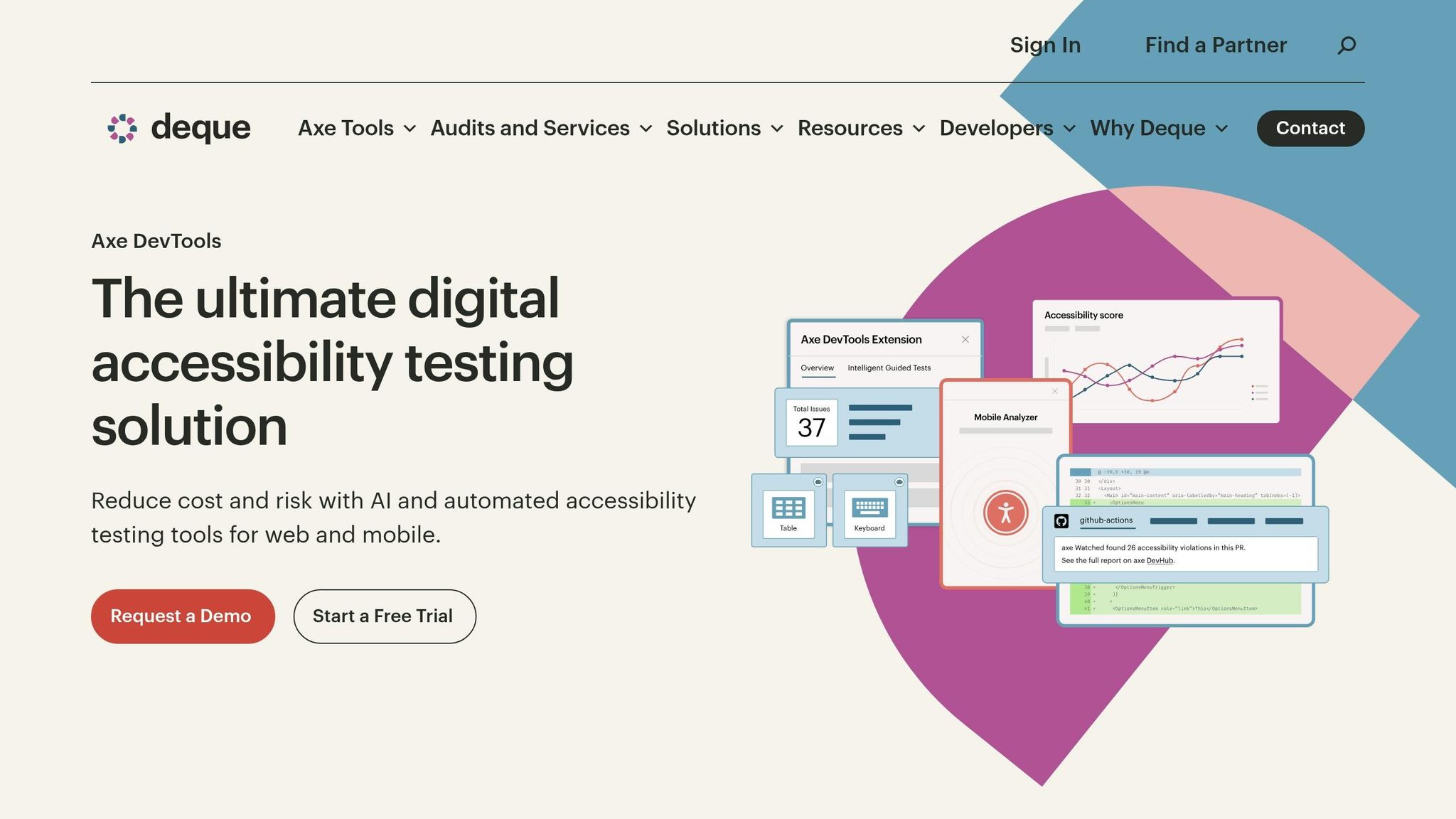
Axe DevTools is a powerful tool designed for accessible mobile development, offering accurate, automated, and real-time testing across multiple platforms. It provides accessibility testing for web, Android, and iOS applications, leveraging the open-source Axe-core library. This library, which has been downloaded over 3 billion times, has been a key component of Google Lighthouse’s accessibility audits since 2017. The tool supports native frameworks like SwiftUI and UIKit for iOS, XML and Jetpack Compose for Android, and cross-platform technologies such as React Native, Flutter, and .NET MAUI.
Automated Testing Capabilities
The Mobile SDK integrates seamlessly with UI test suites, requiring just a single line of code. This allows developers to run automated scans using native testing frameworks like XCUITest and Espresso, identifying up to 80% of accessibility issues automatically. Unlike tools that focus on scanning HTML, Axe DevTools evaluates the rendered accessibility tree, closely mimicking how assistive technologies interact with apps.
This automated testing acts as a foundation, complementing manual checks to ensure comprehensive issue identification.
Immediate Error Detection
The IDE Linter provides real-time accessibility checks as developers write code, flagging errors before they are committed. Meanwhile, the Mobile Analyzer enables QA teams to scan app screens without needing access to the source code. This makes it especially useful for testing third-party integrations or legacy applications.
By embedding accessibility checks directly into the development process, Axe DevTools helps improve efficiency and catch issues early.
Integration with Development Workflows
Axe DevTools easily integrates into CI/CD pipelines, preventing pull requests from advancing if new accessibility violations are detected. It also generates standalone HTML reports that can be shared with team members, even if they don’t have a license. These reports align results with WCAG and platform-specific standards. Deque’s commitment to a "zero false-positive" approach ensures developers focus on actual issues rather than irrelevant elements.
"If you can run an app in iOS or Android, now you can test it for accessibility with us." - Deque Systems
2. Accessibility Scanner
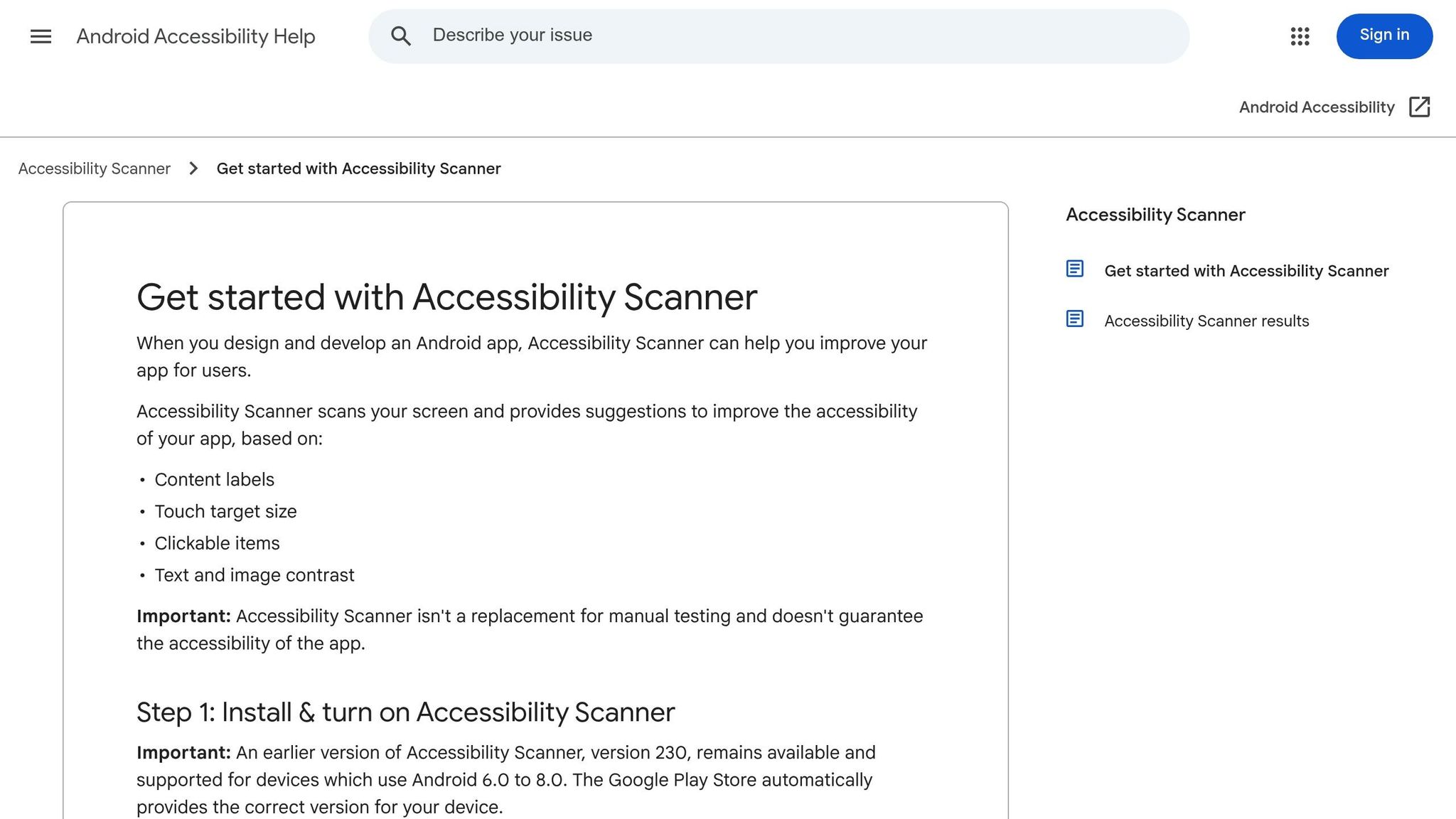
Accessibility Scanner is a free tool from Google designed for Android developers. Its main purpose is to audit app interfaces, identify accessibility issues, and offer suggestions for improvements. With over 1 million downloads and a 4.0/5 rating from around 14,800 reviews on Google Play, it’s become a go-to resource for catching accessibility problems early in the development process.
Platform Compatibility
Accessibility Scanner is built specifically for Android devices, including phones, tablets, and Chromebooks. It requires Android 9.0 or later, though version v230 remains compatible with Android 6.0–8.0. It works with native Android apps as well as those built using frameworks like Flutter, React Native, and Progressive Web Apps (PWAs). For iOS development, Google advises developers to use Xcode's Accessibility Inspector instead.
Automated Testing Capabilities
Accessibility Scanner is equipped to evaluate key accessibility elements like content labels, touch target sizes, clickable elements, and contrast ratios. For instance, it flags interactive elements that don’t meet recommended size standards - 48×48dp for most items and 32×32dp for elements near display edges. Other issues it identifies include:
- Missing or redundant content labels (e.g., labels unnecessarily including the word "button")
- Duplicate clickable views
- Contrast ratios falling below 3.0:1
The tool uses the Android Accessibility Test Framework and aligns its suggestions with WCAG standards.
It offers two modes for testing:
- Snapshot Mode: Analyzes a single screen at a time.
- Recording Mode: Continuously evaluates multiple screens during a workflow, providing a vibration cue with each capture.
These features create the foundation for real-time issue detection, as discussed below.
Real-Time Issue Identification
When activated in system settings, Accessibility Scanner appears as a floating blue button on the screen. Developers and testers can tap it to scan any app, with results displayed instantly. Issues are highlighted in orange rectangles, accompanied by detailed size recommendations.
The tool also includes an "Edit colors" option, allowing developers to experiment with foreground and background color combinations in real time. However, like most automated tools, Accessibility Scanner typically detects only 40% to 57% of potential accessibility issues. As Shailen Tuli from Google Codelabs emphasizes:
"Accessibility Scanner gets you started with accessibility. But always remember to test with real users."
Integration with Development Workflows
Scan results, complete with screenshots and technical details, can be shared directly with team members via email or other communication tools. This streamlines collaboration and troubleshooting. The Recording feature can capture entire user workflows, helping teams ensure logical navigation throughout the app. Many developers use the tool early in the design and development phases to address issues like contrast and touch target sizes before production. Flutter developers, in particular, can validate the semantic nodes generated by the Flutter framework on Android devices using this tool.
For the best results, enable "Show layout bounds" in Android’s Developer Options to visually confirm the touchable areas flagged by the scanner. It’s also essential to pair automated scans with manual testing using screen readers like TalkBack, as the scanner cannot evaluate whether a label is contextually appropriate.
3. Accessibility Inspector
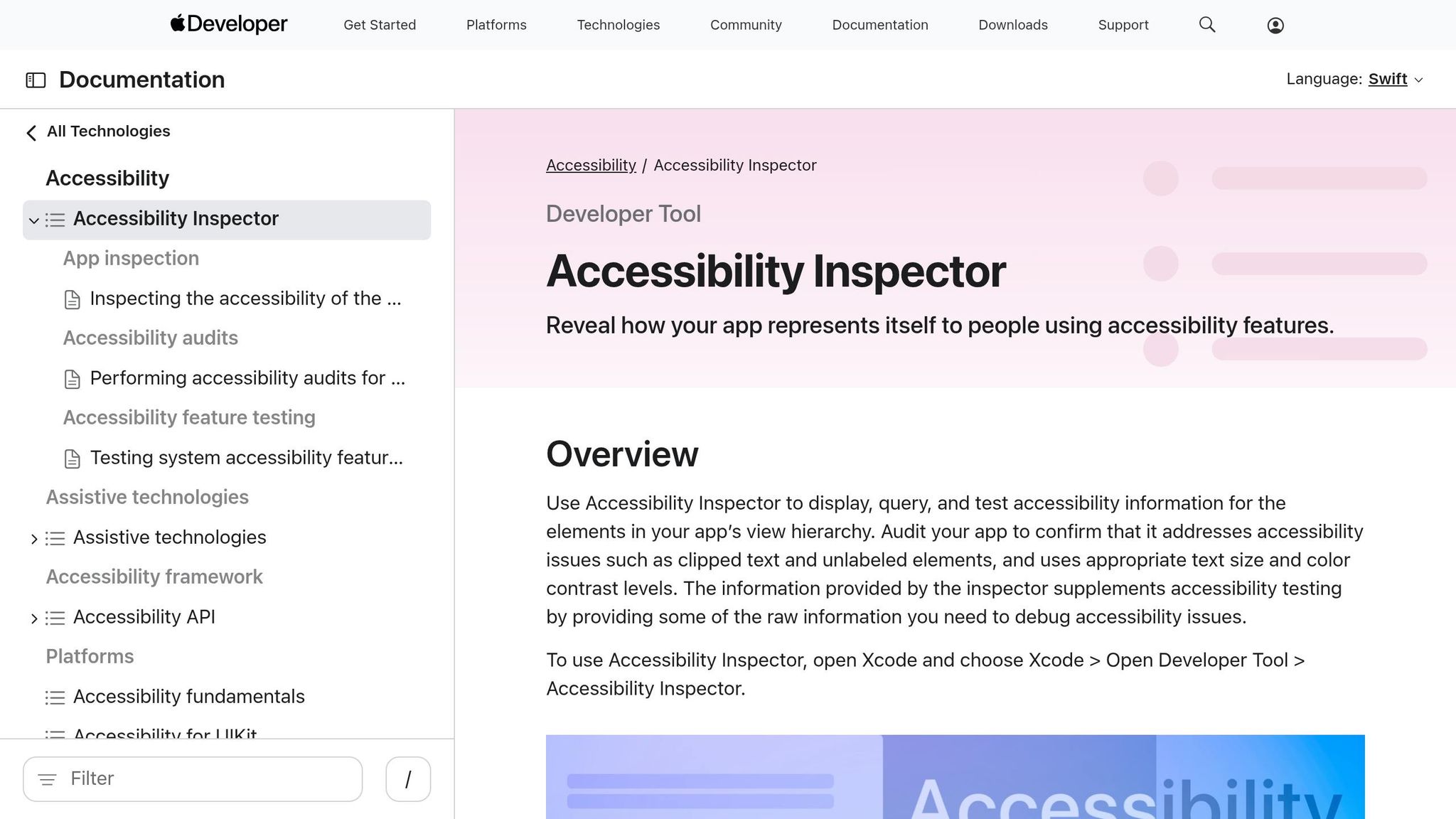
Accessibility Inspector is Apple's go-to tool for accessibility testing, specifically built for iOS, macOS, and watchOS. Unlike tools aimed at Android, this one is strictly for Apple developers and requires macOS with Xcode installed to function. If you're working on Android apps, this tool won't be compatible.
Platform Compatibility
This tool works seamlessly with apps running on Xcode simulators or physical Apple devices connected to a Mac via USB. While simulators are convenient during development, testing on actual devices like iPhones or iPads often provides more accurate results. As Harish Rajora, a Software Developer, explains:
"When it comes to iOS apps, testers depend on the Accessibility Inspector, the official accessibility checking tool offered by Xcode, because of Apple's restrictive ecosystem."
Even developers using top no-code tools and Flutter can make use of this tool by opening their project’s ios folder in Xcode and running the app on a simulator.
Automated Testing Capabilities
The Audit feature is particularly useful for identifying common accessibility issues. It scans the screen and flags problems like low contrast (below WCAG standards) and missing descriptions. To fine-tune color combinations, the tool includes a Color Contrast Calculator, which measures contrast ratios up to 21:1 using complementary colors.
Real-Time Issue Identification
With the Point to Inspect feature, developers can zero in on any UI element to review its accessibility attributes. Additionally, the Settings tab allows toggling of system-level features to see how the app responds - without making permanent changes to device-wide settings. Like other tools, Accessibility Inspector aligns with WCAG standards to guide developers in creating more inclusive apps.
Integration with Development Workflows
Accessibility Inspector is built into Xcode and can be accessed under "Open Developer Tool", making it a natural part of the debugging process for iOS and macOS apps. Developers can run audits on each screen to catch issues like missing labels or touch targets that are too small, all before moving to manual testing. It’s also helpful for diagnosing navigation issues, such as problematic scrolling, pop-ups, or dropdown menus, by analyzing the app’s element hierarchy. While the integration is manual and requires a running app instance, it provides Apple-specific insights that are essential for ensuring accessibility compliance.
4. Lighthouse
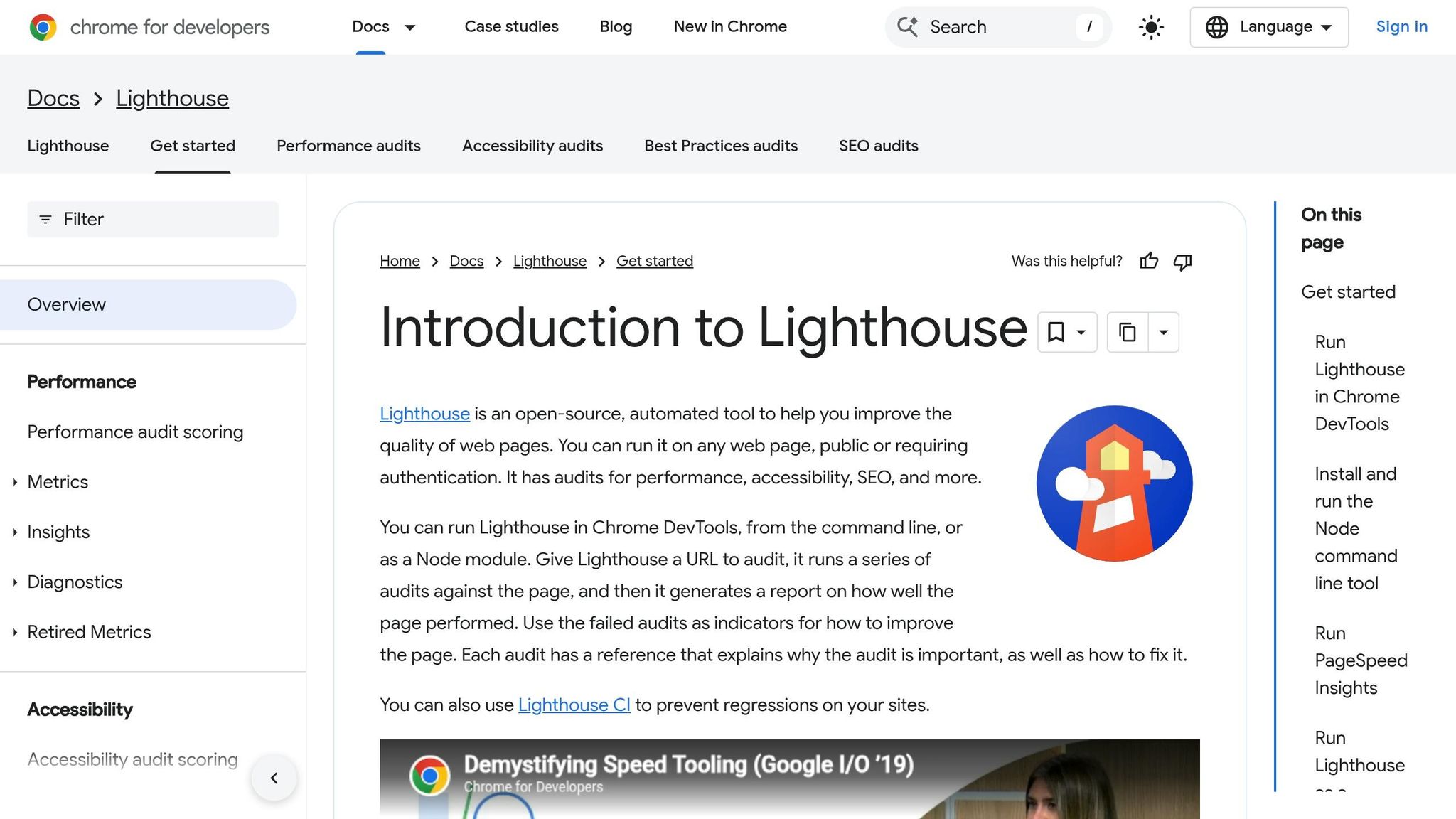
Lighthouse is an open-source tool designed to audit web content. However, it doesn't support testing native Android or iOS applications. While it includes a "Mobile" simulation mode that adjusts the user agent and resizes the viewport to evaluate mobile websites, it’s not suitable for native app testing. For those, tools like Axe DevTools for Mobile are better suited. Lighthouse focuses specifically on accessibility for mobile web experiences, complementing other tools used for native mobile applications.
Platform Compatibility
Lighthouse integrates seamlessly with Google Chrome (via DevTools and browser extensions), Microsoft Edge, and Firefox (through an extension). Its mobile audit mode mimics a low-powered Android device to uncover performance and usability issues specific to mobile web users. As Automation Tester Maria Bueno explains:
"The mobile version specifically mimics a low-powered Android device, revealing issues that might go unnoticed on desktop."
By default, Lighthouse simulates a 3G network connection and applies a 4× CPU slowdown to replicate mobile performance under real-world conditions.
Automated Testing Capabilities
Lighthouse uses the axe-core library to conduct its accessibility audits and provide scoring. It generates a weighted accessibility score (ranging from 0 to 100) and flags common issues like poor color contrast, missing ARIA attributes, and HTML errors that can affect screen readers.
Integration with Development Workflows
Lighthouse supports various workflows, from manual audits via Chrome DevTools to automated testing through its CLI or Node module. Developers can integrate it into CI/CD pipelines and export reports in formats like JSON or GitHub Gists. Lighthouse CI can even block pull requests that introduce new accessibility issues. Additionally, it identifies the underlying platform of a site (e.g., React or Angular) and offers tailored recommendations to address specific accessibility concerns.
5. Accessibility Insights
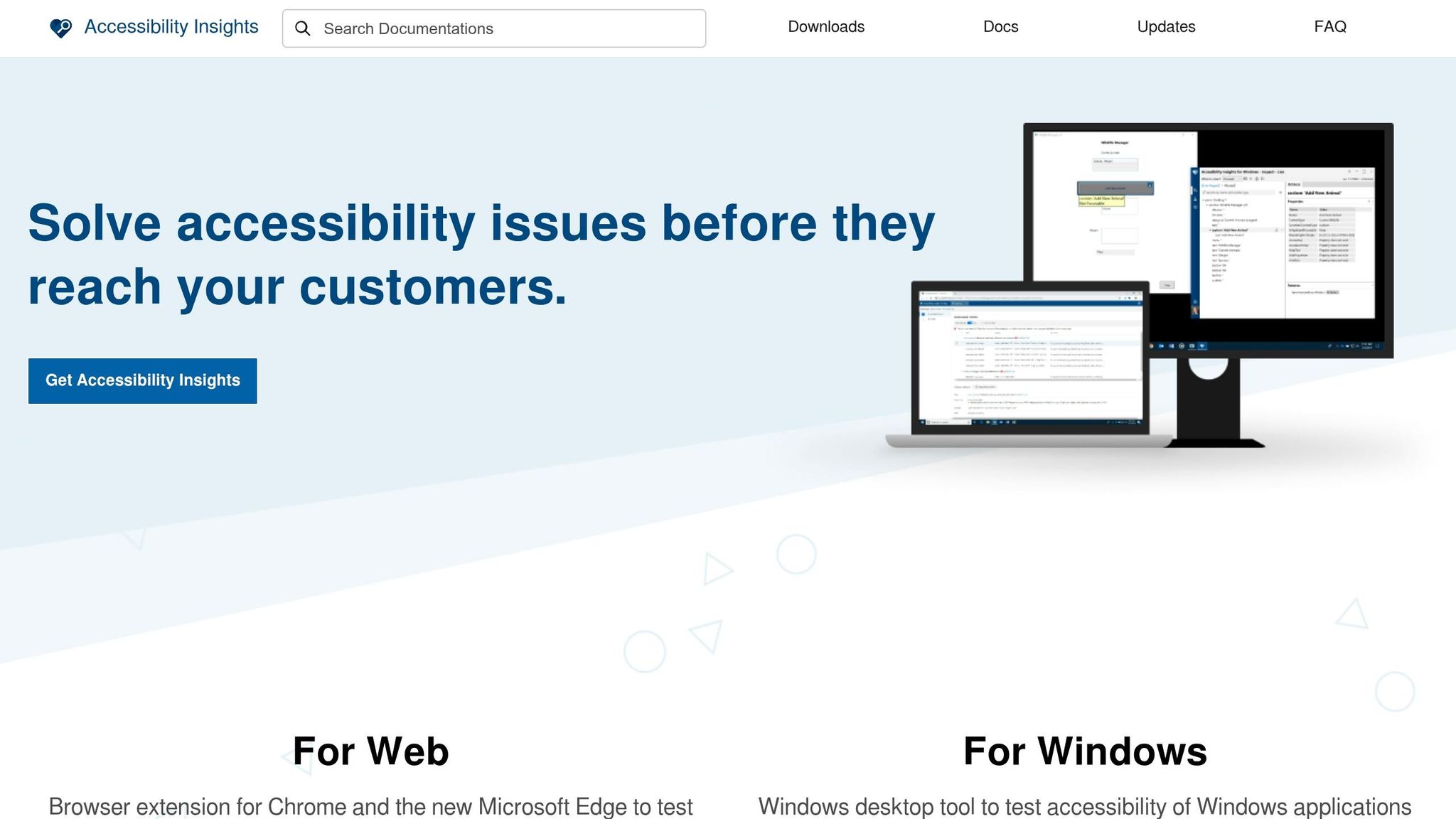
Accessibility Insights is an open-source tool from Microsoft designed to identify and resolve accessibility issues in Web, Windows, and Android applications. However, it does not currently support iOS. Combining automated and manual checks, it simplifies accessibility testing. As Thomas Dohmke, Vice President of Special Projects at Microsoft, puts it:
"Accessibility Insights is an open source set of tools that helps developers find and fix accessibility issues before they reach the customers in Web, Windows, and now in Android applications."
Here’s a closer look at its platform compatibility, testing features, real-time feedback, and workflow integration.
Platform Compatibility
The tool supports multiple platforms. For Android, it’s available as a desktop app compatible with Windows, macOS, and Linux. It works seamlessly with physical Android devices and Android Virtual Devices (emulators). Web developers can use it as a Chrome or Edge browser extension, while a standalone desktop app is also available for Windows. This broad compatibility ensures accessibility issues can be identified across diverse environments.
Automated Testing Capabilities
Accessibility Insights leverages the axe-android rule set, developed in partnership with Deque Systems, to detect issues like low contrast, missing labels, and small touch targets - all while ensuring no false positives. For web testing, the FastPass feature quickly scans for around 50 accessibility requirements and flags high-impact issues in under five minutes. For more comprehensive testing, the Assessment feature combines automated checks with step-by-step manual instructions to verify WCAG 2.1 Level AA compliance. These tools allow developers to identify and address accessibility barriers early in the process.
In addition to automation, the tool provides visual feedback to help developers understand and fix detected issues.
Real-Time Issue Identification
For Android apps, the tool overlays flagged elements directly on a screenshot of the app, making it easy to spot and address problems. The web version includes a Tab Stops Visual Helper, which highlights keyboard accessibility issues - like missing tab stops or keyboard traps - in real time. This immediate feedback allows developers to resolve issues during the active development phase.
Integration with Development Workflows
Accessibility Insights is available on GitHub, making it easy to integrate into existing development workflows. It provides clear, actionable "how-to-fix" instructions for each identified issue, empowering developers - even those without extensive accessibility knowledge - to address problems effectively. By encouraging its use early in the development cycle, the tool helps prevent costly fixes later and promotes building accessibility into applications from the outset.
Conclusion
Building accessible apps opens the door to over one billion potential users worldwide while also enhancing the experience for everyone. The tools we’ve discussed make this process easier by identifying issues early, providing clear guidance for fixes, and blending smoothly into your development workflow.
Here’s the gist: automated testing is a powerful way to catch common accessibility problems like missing labels, inadequate color contrast, and small touch targets. This allows developers to resolve issues without needing to become experts in accessibility overnight.
Tools such as Axe DevTools and Lighthouse, which use the Axe-core library, help meet WCAG 2.1 Level A and AA standards. These standards are essential for compliance with laws like the Americans with Disabilities Act (ADA) and the European Accessibility Act (EAA). Combining automated testing with manual evaluations ensures your app delivers a well-rounded, user-friendly experience.
While automated tools handle routine issues efficiently, manual testing with screen readers like TalkBack or VoiceOver dives deeper into the user experience. This approach reveals not only technical glitches but also the subtle challenges that real users face. Together, these methods create a solid foundation for an accessibility strategy that prioritizes usability and inclusivity.
FAQs
Which tool should I use for native iOS vs native Android testing?
For native iOS testing, Axe DevTools for Mobile offers automated accessibility testing and integrates smoothly with tools like XCUI. On the Android side, it works seamlessly with Espresso and UIAutomator, making accessibility testing straightforward. Additionally, Android's built-in tools, such as TalkBack, and frameworks like Espresso with accessibility testing enabled, are great options for both manual and automated testing to help ensure a more inclusive user experience.
Can these tools run automatically in CI/CD, and what should still be manual?
Automated accessibility tools are a great way to spot issues early when integrated into CI/CD pipelines. But they’re not the whole solution. Manual testing is crucial, especially for tasks like assessing how well screen readers work or evaluating the overall user experience. These are areas where automation often falls short, so combining both approaches ensures a more thorough accessibility check.
How do these tools map results to WCAG and U.S. legal requirements like the ADA?
These tools streamline accessibility testing by automating the process and aligning results with WCAG standards, as well as platform-specific guidelines for iOS and Android. They also assist in meeting legal requirements, such as the ADA, by offering clear insights and practical recommendations tailored to these standards.